HOME | ACCOUNTS | PANELS | SURVEY DESIGN | MANAGE RESPONSE | VIEWING RESULTS | ARTICLESHow to Update Your Accounts and Markets
1. Getting Started
You will receive an email notifying you when it’s time to update your Accounts and Markets. After you log into the Client Area, click "Go Update Account & Markets" to go to the correct page.
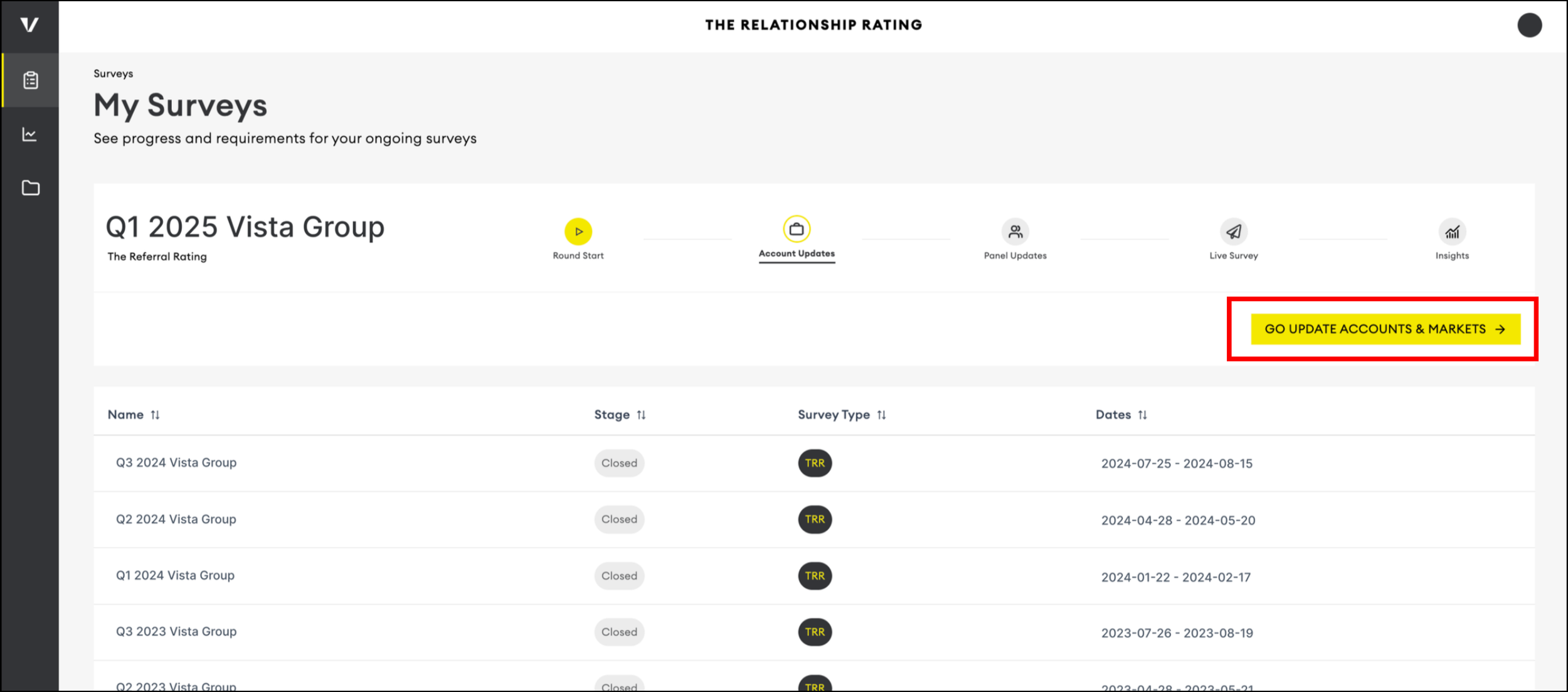
From this page, you can make the updates you need.
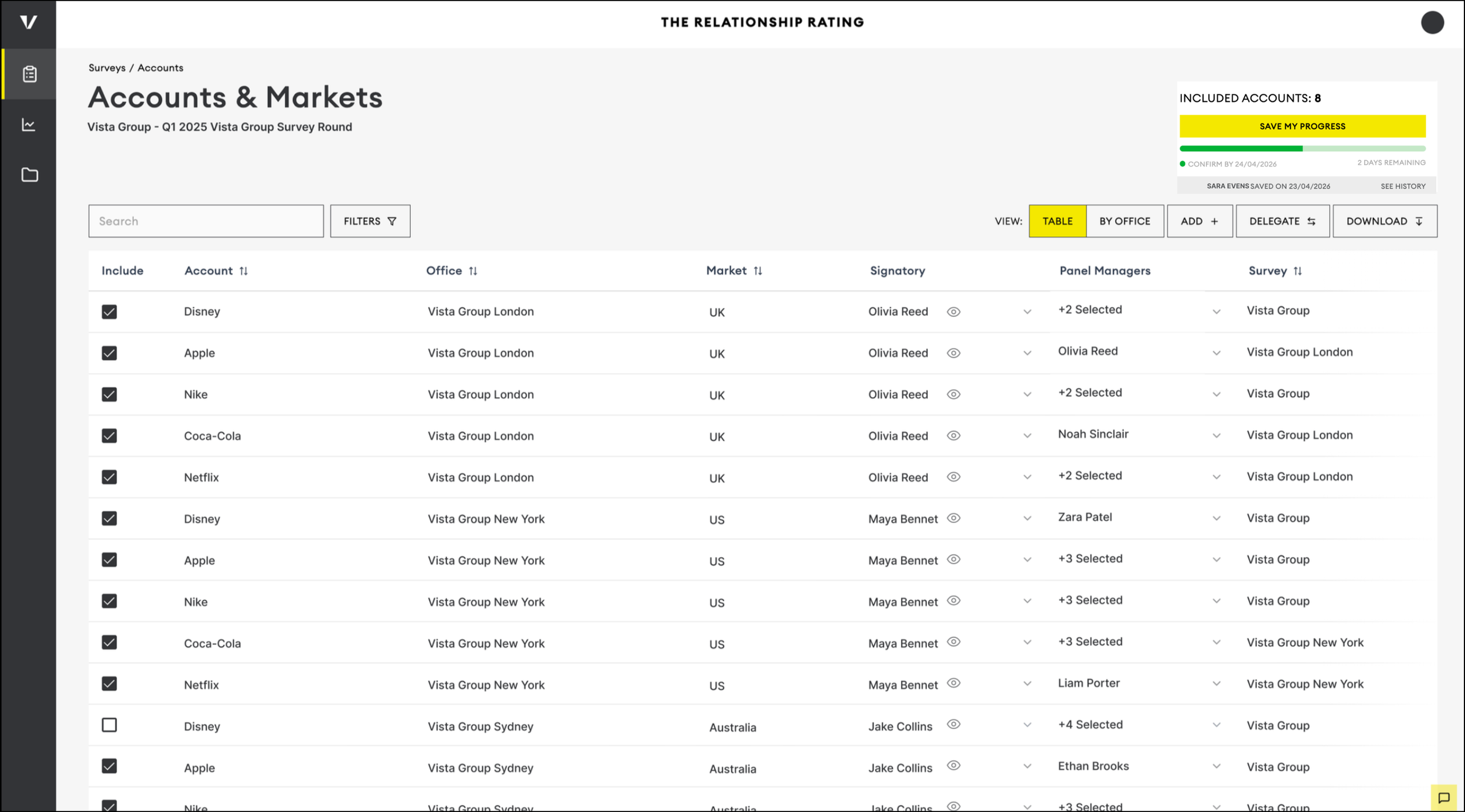
After the update period ends, this page will lock and you won’t be able to make changes.
Please log in and click “Save My Progress” now, even if you’re not updating. If no one on your team saves by the deadline, we will keep your previous Accounts and Markets.
2. Making Updates
Your Accounts page already lists the Accounts surveyed in the last round. If this is your company’s first survey, the page may be empty unless Accounts were added during setup.
Add Accounts for this round by clicking the ‘ADD +’ button

Adding Accounts
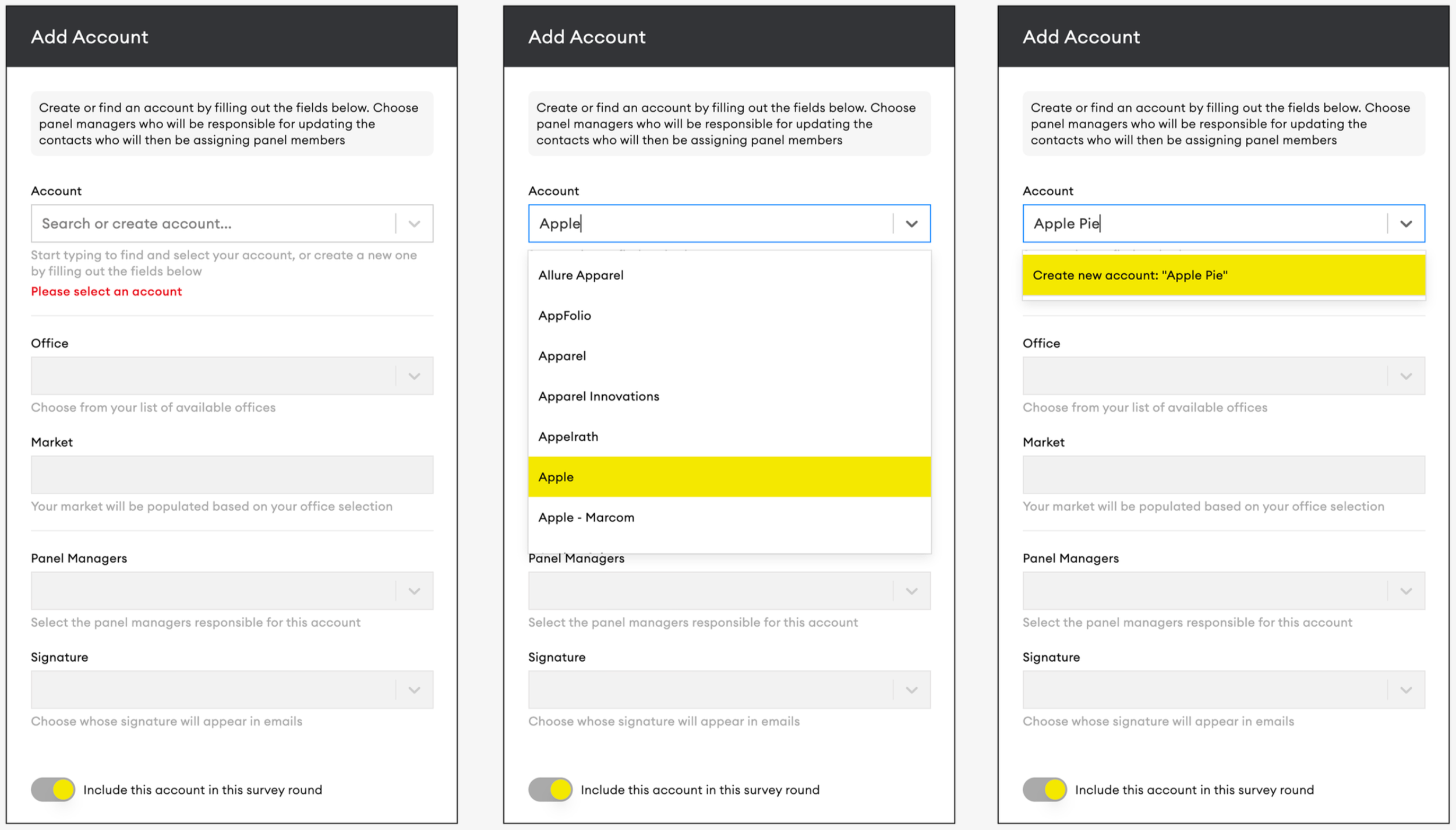
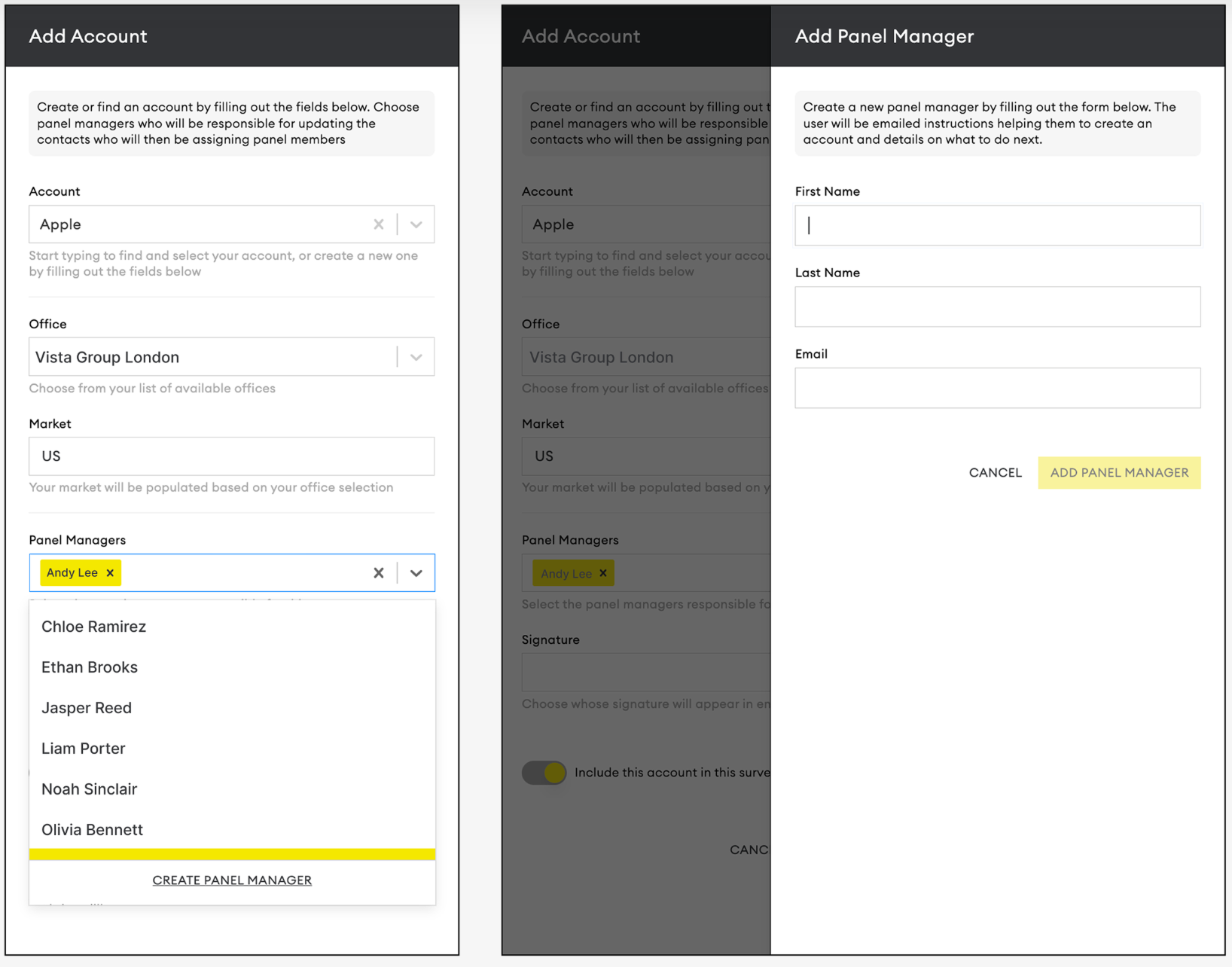
Once the side panel is open, you can add an Account by searching for it. If the Account isn’t in our system, you can add it as a new one.
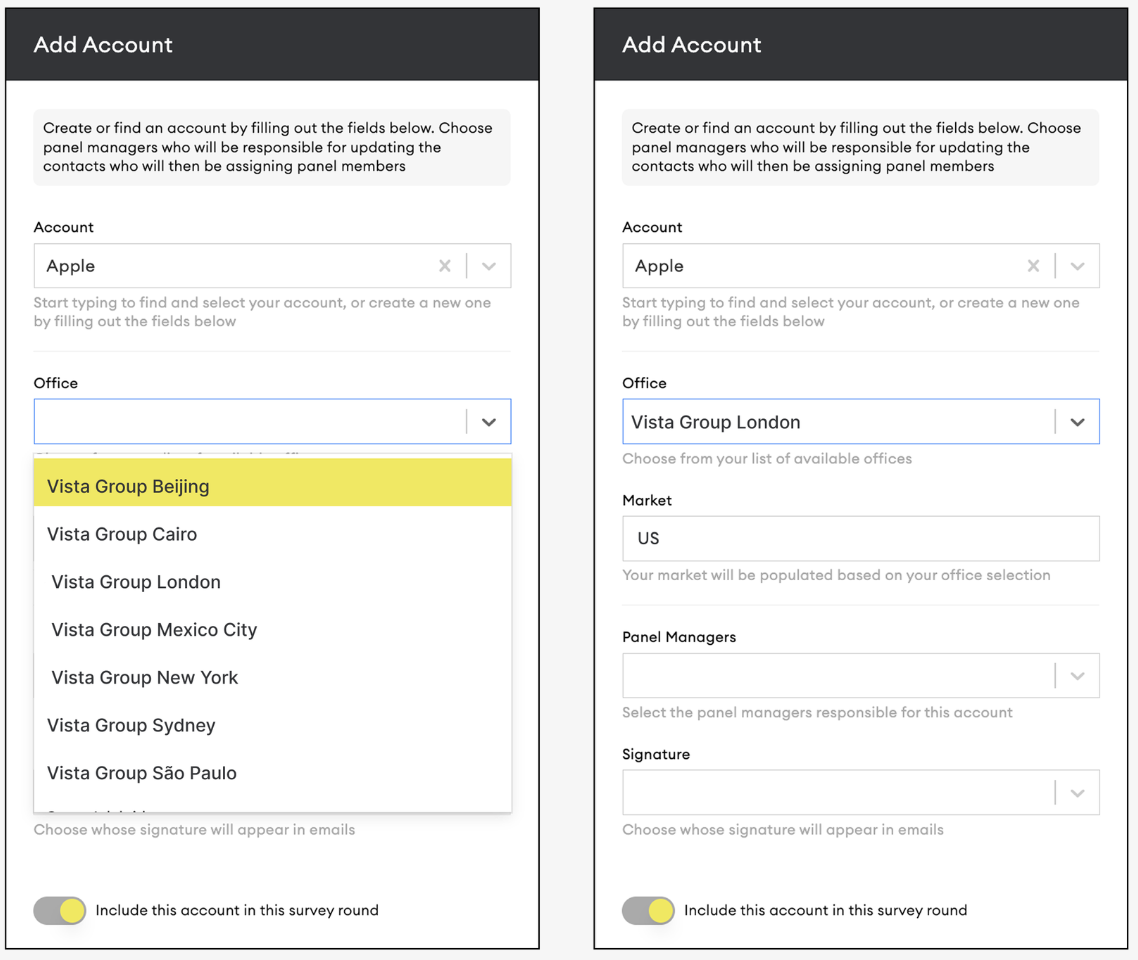
Next, select the office (or site) you’re surveying the Account for—this will automatically populate the Market.
Signatories
Adding recognisable signatories increases response rates, as Panel Contacts are more likely to reply to people whose names they know. If you don’t see the person you want or need to add a new signatory, please email our team. We’ll make sure it’s updated before the next stage.
Review existing signatures
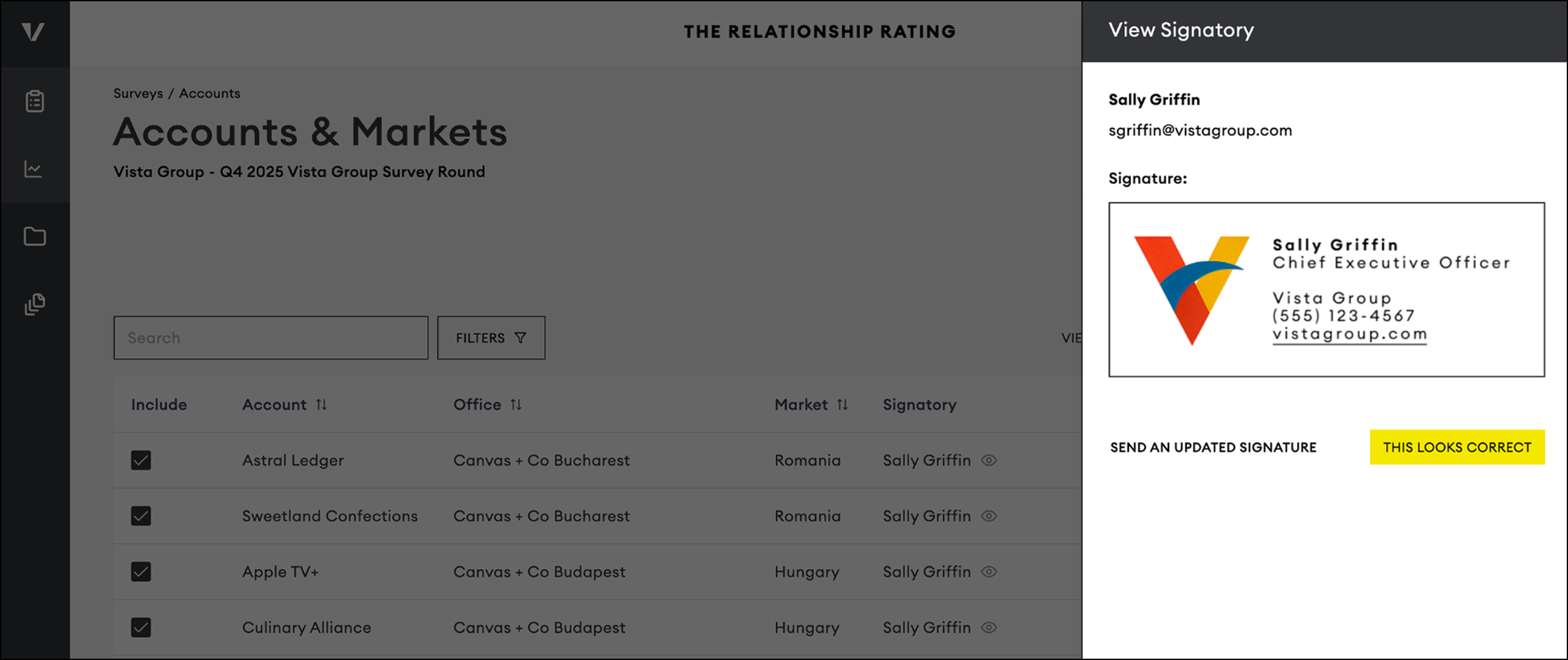
To preview the signature we have on file, click the eye icon next to the signatory’s name.
Request changes
If a signature needs updating, click Send an Updated Signature and provide the revised version
Sending a Test Email
You can send yourself a test email by clicking Send Me a Test Email. This will send the email—including your signature and any banners agreed on to the email address you use to log into the Client Area.
Please note: The wording in the test email may differ from the final wording your company has agreed to.
Please note that the information required to fill out at this stage will be tailored to fit your business structure and industry. Some columns you see below may differ from the ones you’ll see in your table.
Panel Managers
Pick a Panel Manager from the list. They’ll update the contacts who receive surveys for their assigned accounts and markets in the next stage. You can assign more than one Panel Manager per account or add a new one if not listed. New Panel Managers will be added as users and notified when they need to add or update contacts.
3. Collaborating On Accounts
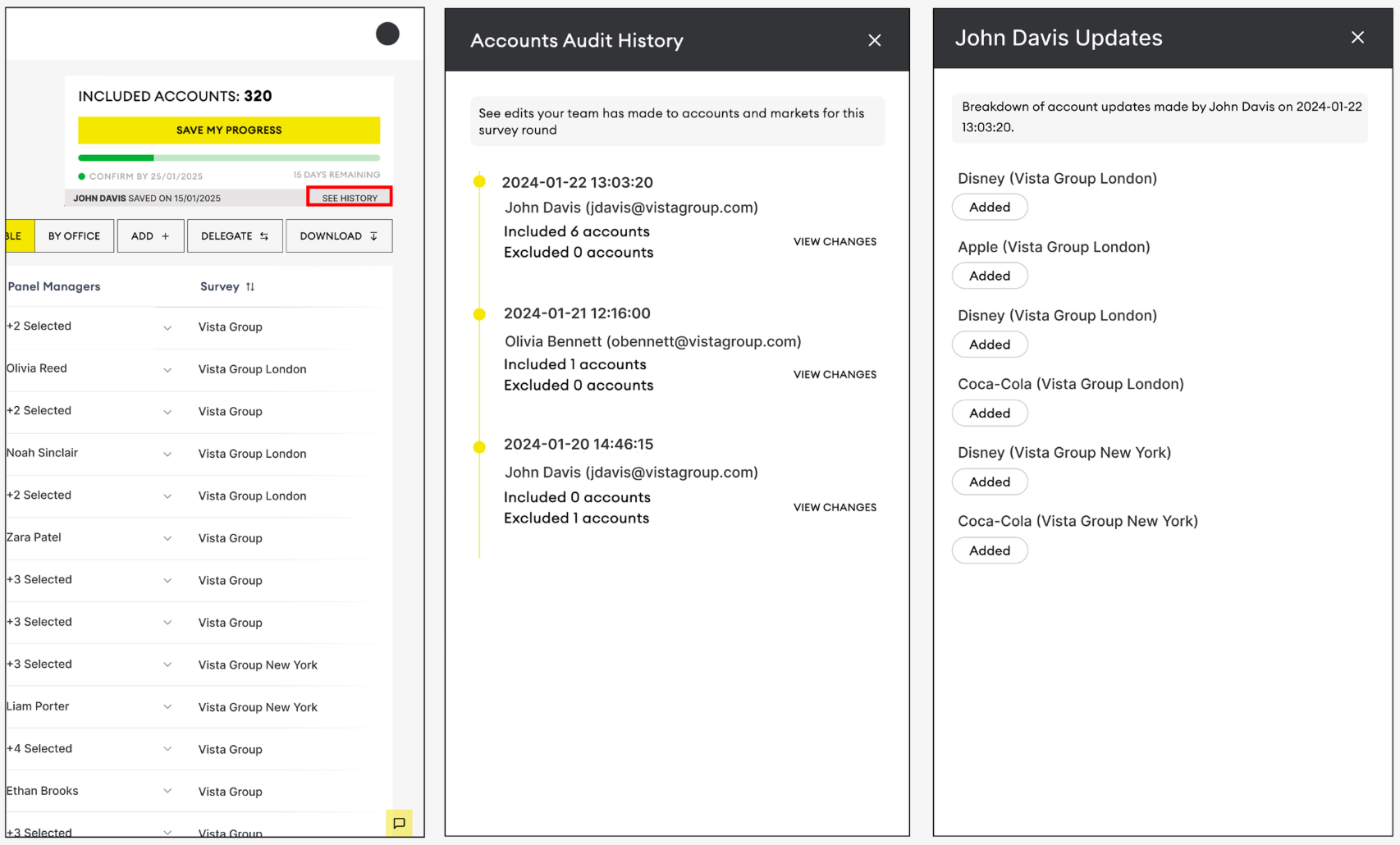
If someone else updates the accounts and markets list and saves, click "See History" at the top right. The Audit History panel opens on the right, showing user sessions. Each timestamp marks when someone clicked "Save My Progress." Click "View Changes" to see all edits from that session.
Downloading
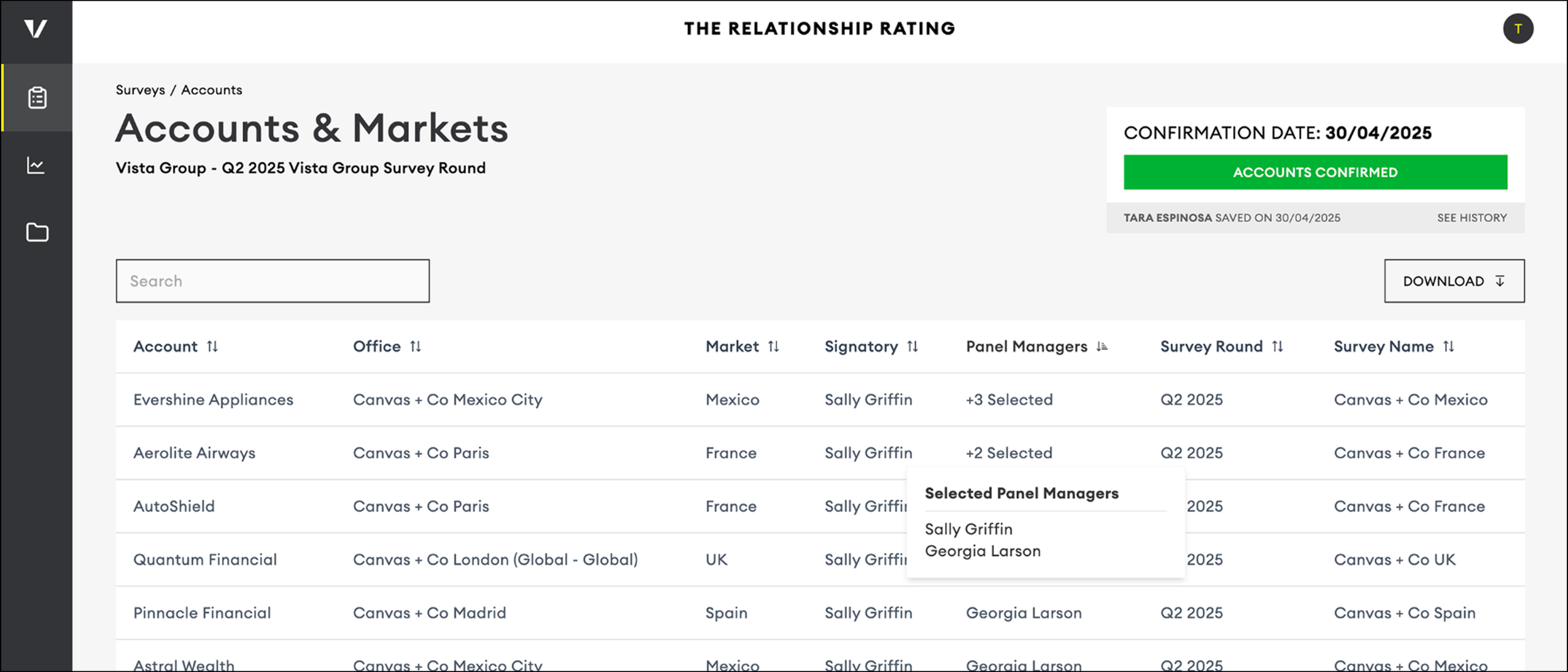
You can download and share spreadsheets (.CSV) of your accounts list with your team by clicking the download button.

If multiple people edit at once, you can only save changes to the newest version. If someone else saves first, others will get an error telling them to refresh and then make their changes.

4. Saving and Confirming
Once you have made all necessary updates to your Accounts and Markets list, you can confirm them by selecting the one you wish to be included in the survey by checking the box next to each one.
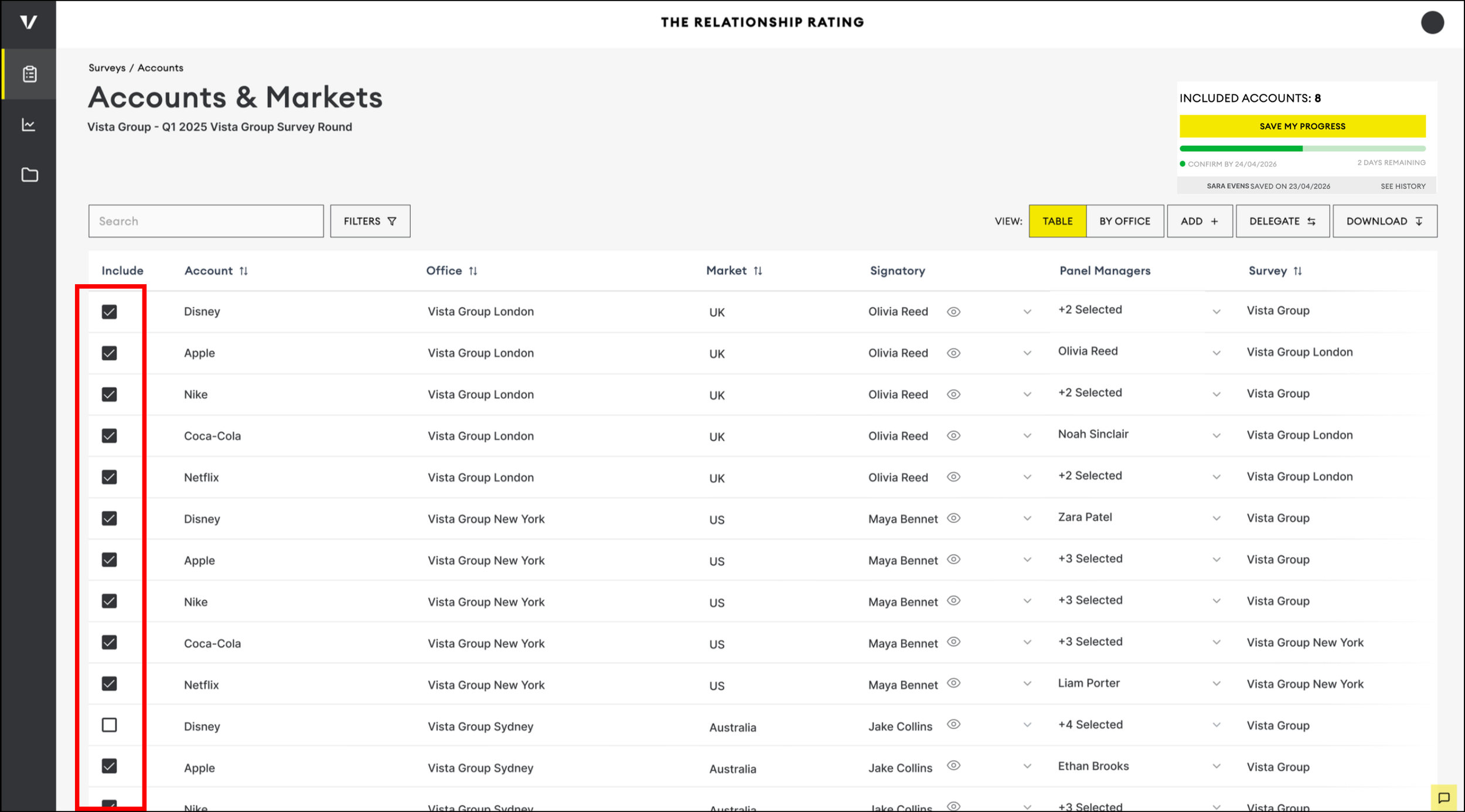
In the top right, you’ll see how many accounts you’re surveying and a status tag that says “Unsaved Changes” if you haven’t saved. After choosing the Accounts and Markets to include, click “Save My Progress” in the top right.

You can save your updates as often as needed until the Account Updates stage ends. In the top right corner, you’ll see how many days remain and the timestamp of your last save.
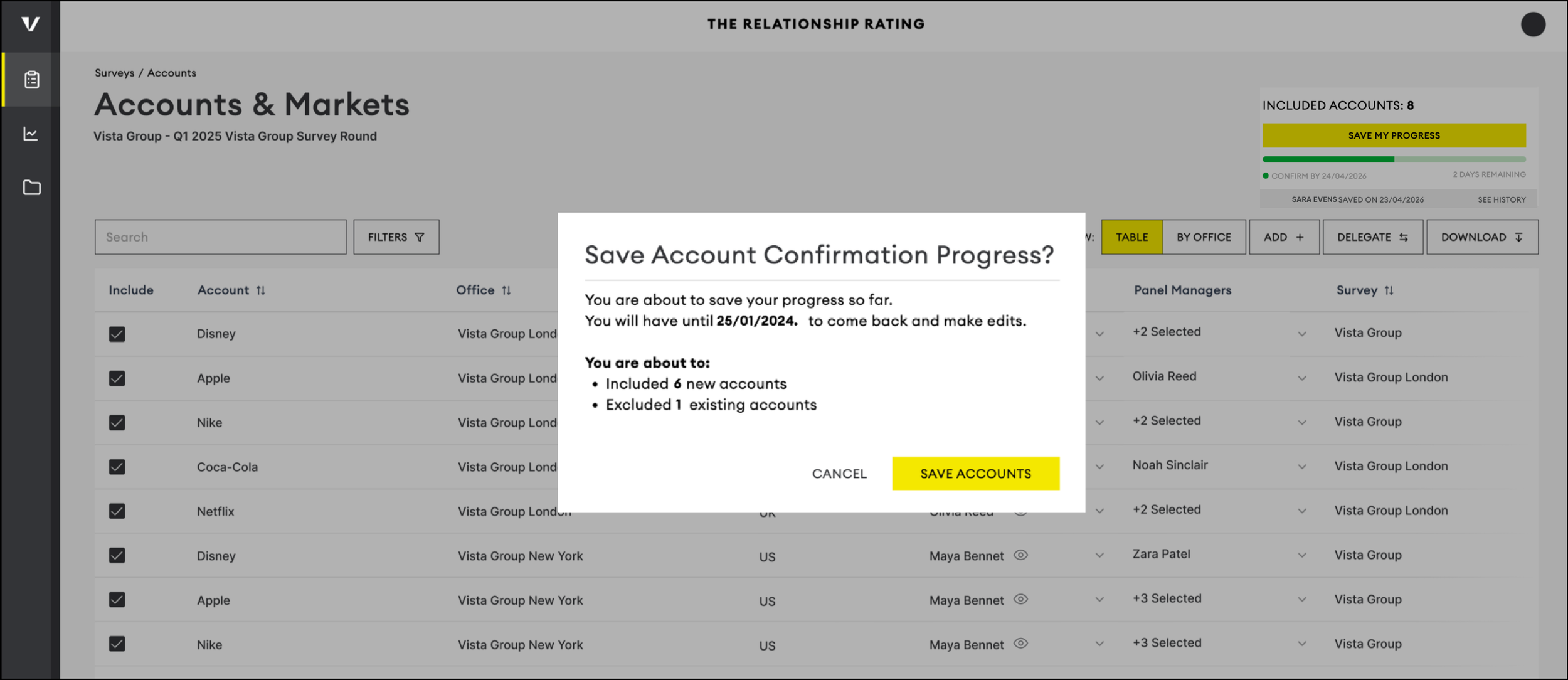
After the deadline, the page will become view-only and no further changes will be allowed. However, you will still be able to view the audit history and download a spreadsheet of your Accounts and Markets.
What to Expect Next
No further action will typically be needed from you at this time.
Panel Managers will receive an email notification when it’s time for them to update their Panels. This is usually scheduled a week after concluding the Account updating stage.
HOME | ACCOUNTS | PANELS | SURVEY DESIGN | MANAGE RESPONSE | VIEWING RESULTS | ARTICLES